Can GBox Bring Google Apps to Huawei Phones?
Huawei users have faced challenges, limiting access to popular apps like the Play Store, Gmail, and Maps. GBox is emerging as a promising solution, enabling users to sideload Google apps onto Huawei devices. This article delves into how GBox facilitates the installation of these apps, the steps involved, and solutions to common problems encountered during the process. Discover the potential of GBox to bridge the gap between Huawei phones and essential Google services without the need for traditional Google Mobile Services.
What GBox Is and How It Works
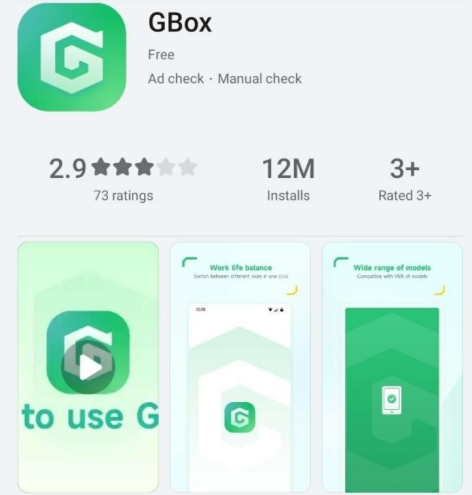
For users wondering what is gbox in huawei, it is essentially an innovative application designed to install and run Google apps on Huawei devices through a virtualized environment. GBox acts as a sandbox within the smartphone, allowing users to interact with Google services without directly integrating Google Mobile Services into the system. By running apps in this isolated space, GBox bypasses the restrictions imposed on Huawei phones while maintaining app functionality. Its intuitive interface simplifies setup and app installation, making it accessible even to users without technical expertise. Importantly, GBox does not require rooting the device, which helps preserve system security and stability.
How to Use GBox to Install Google Apps?
Finding and Installing GBox from AppGallery or APK
To begin using GBox, users must first locate and install the app from Huawei’s AppGallery or download its APK file from a trusted source. Search for “GBox” in the AppGallery, and tap the install button to start the download. If opting for the APK, ensure it comes from a reputable website to avoid security risks. Once downloaded, open the APK file and follow on-screen prompts to complete the installation. It’s crucial to grant the necessary permissions to allow GBox to operate effectively. These steps prepare users to dive into the full suite of Google apps available through GBox.
Signing Into Google Play Inside GBox
After installing GBox, open the app and locate the Google Play Store icon within its interface. Tap on the icon, which will initiate the sign-in process. Users must enter their Google account credentials to access their profiles and previous app purchases. Ensure that two-factor authentication settings are appropriately configured beforehand to streamline this step. GBox securely handles the authentication process and syncs the account within its virtual environment, offering users a familiar Google Play experience without typical Huawei restrictions.
Installing and Running Google Apps via GBox
With Google Play signed in via GBox, users can search, install, and run Google apps directly from the Play Store interface inside GBox. This process is straightforward; simply find the desired app, tap install, and launch it once downloaded. GBox ensures that all Google apps operate within its sandbox, maintaining functionality similar to what users expect on non-Huawei devices. Performance may vary, but routine apps like Gmail and Google Maps generally run smoothly within this setup. Users can also receive updates through GBox, ensuring apps remain refreshed and secure.
Common Problems and Fixes With GBox
Login Errors and Account Sync Issues
Some users may occasionally encounter login errors or experience difficulties when syncing their Google accounts within GBox. In most cases, these problems can be resolved by first checking the stability of the internet connection and ensuring that all required permissions are properly enabled for GBox to function. It’s also helpful to verify account credentials carefully and reset the Google password if needed. Additionally, clearing GBox’s cache, force-stopping the app, and restarting it can resolve temporary sync issues. If problems continue, uninstalling and reinstalling GBox often provides a clean setup and fixes persistent account-related bugs.
App Crashes and Performance Tips
Performance issues, such as app crashes within GBox, can be frustrating and disrupt the user experience. To reduce these problems, first make sure the device’s operating system is updated to the latest version, as updates often improve system stability and compatibility with GBox. Regularly clearing GBox’s cache can also help optimize its internal environment and prevent data overload that may trigger crashes. Additionally, managing RAM usage is important—avoid running too many apps at once to maintain smooth performance. If a particular app keeps crashing, try updating it or reinstalling it within GBox to resolve potential bugs or corrupted files.
Conclusion
GBox offers a practical solution for Huawei users looking to access Google apps without Google Mobile Services. Through its virtual environment, GBox successfully bridges the gap, allowing for the installation and operation of essential Google services. While occasional issues may arise, such as login errors and app crashes, most can be resolved through simple troubleshooting steps. By leveraging GBox, Huawei users can enjoy the functionality and convenience of Google apps, enhancing their smartphone experience and restoring access to critical services.