How Can You Get the YouTube App on Huawei Phones?
Struggling to install and use the YouTube app on your Huawei phone can be frustrating. Though AppGallery offers many alternatives, YouTube enthusiasts need reliable methods to enjoy their favorite videos. This guide explores various ways to access YouTube on Huawei devices efficiently, utilizing AppGallery, microG, mobile browsers, third-party APKs, and alternative apps. Whether you’re looking for installation solutions or quick troubleshooting tips, learn how to navigate common issues and ensure a safe YouTube experience on your device.

Proven Ways to Access YouTube on Huawei
Accessing YouTube on a Huawei phone without native Google support requires creative solutions. Huawei users can use AppGallery with microG and GBox, mobile browsers, third-party APKs, or alternative apps to enjoy seamless YouTube viewing. These methods are user-friendly and offer straightforward solutions to install YouTube and avoid common issues related to device compatibility.
Method 1 – Using AppGallery with microG and GBox
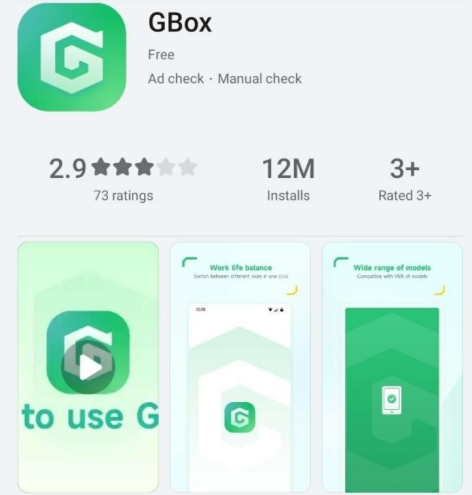
Huawei’s AppGallery is the official app store, but it doesn’t include Google services directly. By using microG, an open-source framework, you can simulate Google services and enable YouTube functionality. Download microG and GBox from AppGallery, then follow the setup steps to create a compatible environment. Opening GBox allows Huawei devices to run apps that depend on Google APIs, making this method one of the most stable ways to run the youtube app for huawei. Keep all components updated to ensure optimal performance and security.
Method 2 – Use a Mobile Browser
Using a mobile browser is a direct way to enjoy YouTube on Huawei. Open your browser, visit youtube.com, and experience full feature accessibility, like video streaming and account login. This method is quick, eliminating app download hassles. Browsers such as Chrome or Firefox usually offer smooth viewing experiences with features like ad-blocking and video downloads. Bookmark the YouTube URL for easy access. Regular browser updates enhance functionality and security, providing a hassle-free, non-native app solution for Huawei users.
Method 3 – Third-Party APK Installation
Installing YouTube via third-party APKs involves downloading the app files directly. Websites like APKMirror offer safe, updated APKs of popular apps. Download the YouTube APK file, enable “Install from unknown sources” on your Huawei device, and proceed with installation. This method bypasses restrictions, providing you with YouTube’s full app experience. Carefully choose trusted APK sources to avoid malware risks. Update APKs regularly to benefit from new features and security patches, ensuring a safe installation process and smooth application performance.
Method 4 – Alternative Apps
Alternatives to the YouTube app can offer similar viewing experiences. Apps like NewPipe or YouTube Vanced mimic YouTube’s features but are not available on AppGallery. These apps offer ad-free viewing and background playback. Download and install these apps from trustworthy sources to try different functionalities. They often require microG to operate efficiently on Huawei devices. Consider alternative apps for their unique interfaces and features, which sometimes surpass YouTube’s official offerings. Regularly updating these apps optimizes user experience and resolves any streaming issues.
Common Problems and Fixes
Even after a successful installation, users might face issues accessing YouTube. Identifying common problems and applying quick fixes ensures smooth operation on Huawei phones.
Cannot Sign In or Play Videos
Difficulty signing in or playing videos on YouTube may stem from incomplete installation of microG or outdated app versions. Verify if microG is correctly set up and updated. Clear cache and data in the app settings under “Storage.” Reinstalling app updates can resolve authentication problems. Reboot your device to refresh system processes. Ensure reliable internet connectivity for streaming, as interruptions may impact video playback. Examine app permissions for potential restrictions hindering performance. Following these steps should enable flawless functioning of your YouTube app.
Performance Issues and Workarounds
If the YouTube app suffers lag or freezing, the device’s performance may be compromised. Free up device storage by deleting unnecessary files and apps. Close background apps to allocate more resources to YouTube. Adjust video quality settings within the app to manage performance; lower resolutions consume fewer resources. Clearing the cache and updating apps can also enhance responsiveness and speed. Restarting the app or device often resolves minor glitches. These workarounds can significantly improve the operation of the YouTube app on Huawei phones.
Safety and Best Practices
Maintaining app safety is crucial for Huawei users accessing YouTube, primarily when using alternative methods or third-party sources.
Avoid Unsafe APK Sources
Downloading APKs from unreliable sources can jeopardize device security. Malware embedded in APKs can corrupt files or steal personal information. Always seek trusted download websites like APKMirror for reliable app versions. Verify digital signatures and read user reviews before installation. Enable settings to install APKs from known sources only. Consider antivirus applications to scan new files for malware. These practices minimize risks and ensure safe installations, maintaining your device’s integrity and security.
Keep Apps Updated on Huawei
Regular updates refine app performance, offering new features and security enhancements. Enable automatic updates from AppGallery or other third-party applications. Check for updates frequently to receive improvements. Updated apps are less prone to bugs and offer better functionality. Prioritize system updates to ensure compatibility with new versions of installed apps. Regular maintenance of your device’s software prolongs its lifespan and optimizes overall app experience, providing a seamless user interface for YouTube and other apps.
Conclusion
Accessing YouTube on Huawei phones despite the lack of Google services is achievable with the right resources. By exploring methods like AppGallery with microG and GBox, using browsers, installing APKs, or opting for alternative apps, Huawei users can enjoy uninterrupted YouTube entertainment. While encountering common issues is possible, applying troubleshooting solutions restores functionality effectively. Maintain safety by selecting reliable sources and keeping apps updated, ensuring smooth operation. Examining options and applying solutions empowers Huawei users to seamlessly integrate YouTube into their daily digital life.
Latest: Can GBox Bring Google Apps to Huawei Phones?
Next: How Do You Set Up microG on Huawei Without Root Access?