How Do You Set Up microG on Huawei Without Root Access?
Huawei’s shift from Google Mobile Services (GMS) to Huawei Mobile Services (HMS) left many users looking for alternatives. One notable solution is microG—a free and open-source implementation of GMS. It offers functionality without sideloading Google apps, thereby preserving privacy and compliance with Huawei’s ecosystem rules. This guide aims to equip you with the necessary steps to install microG without needing root access on your Huawei device. It provides a comprehensive walkthrough to tackle potential challenges and maximize device efficiency. Whether you’re a Huawei P series user or have switched over to a Mate series, understanding how microG can enhance your device use is vital. The guide discusses tackling common roadblocks, optimizing settings, and ensuring seamless integration. Additionally, you’ll learn how to assess which applications will work and troubleshoot any arising issues effectively. This setup ensures you continue to enjoy a plethora of apps with the flexibility and control over data that microG provides. Venture ahead to transform your Huawei user experience.

Before You Start: Check Your Huawei Model and Software Limits
microG vs GMS vs HMS—What Changes on Huawei?
The microG serves as a substitute for GMS, providing essential Google service frameworks without official apps. As Huawei transitioned towards HMS, users needing Google apps found a gap filled aptly by microG. Can I use microG on Huawei? While GMS offers direct Google app access, microG provides underlying infrastructure without overt Google dependency. This setup favors privacy-focused users. In contrast, HMS includes Huawei replacements for services like email or maps but lacks broader app compatibility. Choosing microG sees users thriving on a middle ground—gaining app functionality quietly supplemented by microG’s resourcefulness. It’s vital to understand these differences for making informed personalization decisions.
Apps That Usually Work vs Apps That Still Break
With microG, numerous applications perform seamlessly, mimicking at least 90% of their GMS counterparts. Apps like Instagram, WhatsApp, and Telegram run smoothly on Huawei devices. However, some applications may falter or require tweaks. Apps heavily reliant on SafetyNet like Google Pay or particular banking apps may face issues due to certification requirements. Moreover, apps with proprietary integrations or exclusive licenses may still break, needing manual fixes or alternative solutions. Staying updated with community-driven app support forums, enables users to find fixes or experts who continuously adapt apps for compatibility with microG, Huawei, and user’s particular requirements.
What You Need for a Clean microG Install
Downloads Checklist: microG Service, Companion, and Related APKs
To run microG efficiently, gather essential APKs. First, download the microG Service Core APK—this acts as the collection’s backbone. Secondly, acquire the microG Services Framework Package. This APK guarantees enhanced synchronization and support to Google-based apps. To ensure the completeness of this setup, download the microG Services Framework Proxy APK to handle networking requests. For companion needs, consider the FakeStore APK—it provides a compatible app store interface mimicking Google Store contributions. For enhanced features, find the ‘microG Settings’ APK to access configurations settings, thereby breaking limitations while offering microG an optimal environment to operate.
Where to Get microG on Huawei (AppGallery vs APK Sources)
Access microG through various pathways. Huawei’s AppGallery houses a broad spectrum of apps; however, microG may not be readily available due to its specific ecosystem alignment. Instead, rely on trusted APK sources. Websites like GitHub offer updated collections, community support, and detailed instructions. Ensure APKs are from reputable sources and frequently updated. Using a secure download link enhances safety risks managed effectively. Keep exploring verified forums and platforms dedicated to microG developments—these resources bring updates and security patches ensuring consistent operation and eliminating the risk of downtime or service disruption.
Step-by-Step: Install microG on Huawei Without Root
This comprehensive guide walks you through installing microG on your Huawei device. We provide accurate steps to configure and maintain efficient setups without root access.
Step 1 — Prepare Your Phone (permissions, battery, updates)
Begin by ensuring your phone is prepared for the installation process. Check battery health—a minimum of 70% charge is recommended to prevent interruptions mid-installation. Enable app installations from unknown sources via settings for hassle-free APK loading. Consider updating the device firmware to the latest release—this minimizes compatibility issues and enhances app performance. Finally, restart your phone to clear any runtime issues, ensuring a smooth installation experience.
Step 2 — Install microG Packages in the Right Order
With your device’s preparation section streamlined, proceed with package installations. Begin by installing the microG Service Core APK. This core package facilitates app operations mimicking the GMS environment. Next, install the microG Services Framework package for seamless app permissions handling. The third step involves installing the Services Framework Proxy APK designed for networking tasks. Finally, complete the package assembly by installing the microG Settings APK, and adjust device specifications accordingly.
Step 3 — Open microG Settings and Complete Self-Check
Post-installation, access the microG Settings app. Begin a self-check to verify stability and setup accuracy. This ensures services such as location access and network availability meet operational standards. Navigate the settings to confirm registration components and permission aspects are appropriately labeled ‘Enabled.’ The procedure also involves testing network components ensuring communication paths aren’t obstructed. Using built-in prompts and guidance ensures no crucial feature remains unchecked, maintaining efficient performance.
Step 4 — Enable Device Registration and Cloud Messaging (FCM)
Activate your device’s registration components by following prompts in the microG Settings application. Set up Cloud Messaging (FCM) allowing real-time message reception and data synchronization—an integral component for app efficiency. Verify toggle switches for both functions are in the right position to guarantee operation fluidity. Rest assured, microG scripts handle backend duties without manual inputs, thereby easing user burden while maintaining a reliable setup basis.
Step 5 — Add an Account the Safe Way (Huawei button method)
Post microG activation, safely integrate a Google account using the Huawei button method. Locate and access account menus inside the microG settings environment. Use embedded options to associate specific Google accounts, ensuring these align with Huawei guidelines for this method. Secure data by minimizing third-party app reach and maintaining optimal usage. With successful integration, Google app functionalities seamlessly perpetuate—establishing device usability at par with GMS standards.
Safety, Privacy, and Risk Notes
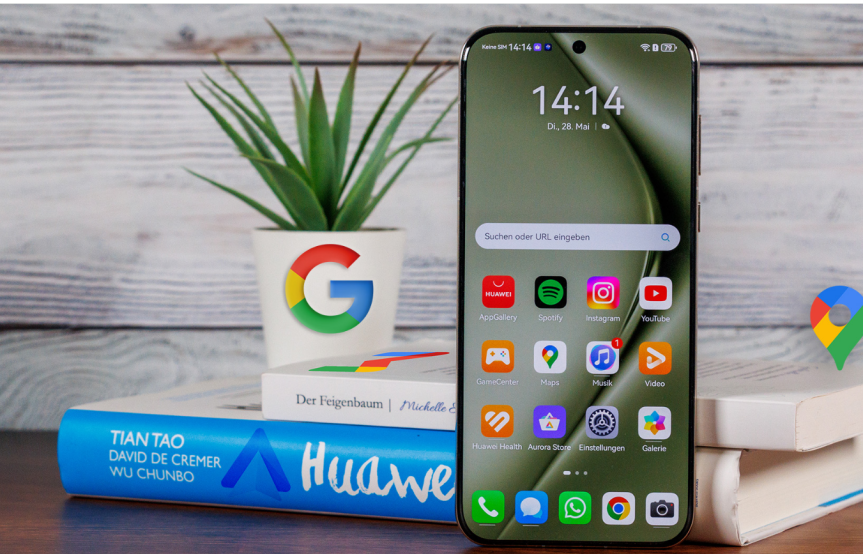
Understanding the privacy, safety, and risk factors involved in sideloading apps is crucial for a secure microG experience. Choose APKs from trusted sources only to avoid malicious downloads. It’s essential to verify apps for data safety by observing permissions requested during downloads—align these with your privacy preferences. Safeguard your privacy by frequently reviewing application settings in microG, removing excess permissions where risks suggest. Finally, regularly update both applications and packages to discourage malicious breaches and optimize performance reliability. Addressing safety standards ensures engagements on Huawei devices remain secure while maintaining operational efficiency.
Recommended Tools and Apps That Make microG Easier
Several tools enhance microG setup and functionality, ensuring seamless experiences. DualSpace is a powerful tool for segregating work and personal apps, vital in managing multiple accounts without profile disruptions. F-Droid, an alternative app store, provides community-vetted applications including microG updates—a repository ensuring access to trustworthy tools and libraries. Vanced Manager complements microG, enabling advanced configurations for settings demanding fine detail. For user-centric app customization, Aurora Store provides access to Google Play Store apps without direct Google dependency. Exploring Tor Browser options encourages privacy without constraining web access. These tools augment user empowerment, maximizing microG offerings without limitations.
Conclusion
With evolving tech landscapes, setting up microG on Huawei devices provides control over app experiences. This guide equips you with actionable steps securing optimized configurations without rooting. By evaluating phone compatibility, leveraging appropriate tools, and diligently following procedures, users discover reliable alternatives to GMS. As privacy becomes paramount, microG ensures operational independence while respecting user data sanctity. Delving into these processes will unite tech evolution with unparalleled benefits, allowing Huawei users to navigate their tech world with confidence and reliability. Adopt microG today—achieve digital resolutions fit for an evolving future.